Index: 유데미 리눅스
Status:
Module 4
59. Linux Command Syntax
- option
- argument
ls -l seinfeld
rm -f <file> : 파일 삭제
rm -r <directory> : 디렉토리 삭제
ls 옵션
l: 자세히 나타내줌a: 모든 파일, 디렉토리t: 시간 순서대로 정렬r: 정렬된 데이터를 내림차순으로 (최신이 아래)
60. File and Directory Permission
3 type of permission
- r - read
- w - write
- x - execute
3 level
- u - user
- g - group
- o - other : everyone
chmod : change mode, change permission
-
chmod g-w jerry: jerry 에 대한 그룹 권한 중 write 제거 -
chmod u-r jerry: 유저 권한 중 read 제거 -
chmod a-r jerry: 모든 사람에 대한 권한 중 read 제거 -
chmod u+rw jerry: 유저에 대해 rw 권한 부여 -
chmod o+rw jerry: 모든 사람에 대해 rw 권한 부여
Q. 만약 a 옵션으로 권한을 빼버리면? → 모든 레벨에서 권한 사라짐. Q. 디렉토리에는 왜 x 권한이 있지? → cd 명령어를 쓸 수 있다는 뜻
디렉토리의 경우
- x : cd 명령어 실행 가능. 즉 들어갈 수 있음
- l : ls 등 명령어로 내용물 읽을 수 있음
62. File Ownership
2 owner of a file or directory
- User / Group
owenership 바꾸는 커맨드
chown : 소유자 바꾸기
chgrp : 그룹 바꾸기
chown root lisa: lisa의 소유자를 root로 변경
Access Contorl List (ACL)
유저별 권한을 줄 수 있는 가장 상위 레이어
-
유저별 권한 부여
-
setfacl: set file acl -
-m: modifysetfacl -m u:username:rwx /path/to/file -
그룹별 권한 부여
setfacl -m g:groupname:rw /path/to/file -
자신이 속한 디렉토리의 acl 상속
setfacl -Rm "entry" /path/to/file -
엔트리 삭제
setfacl -x u:username /path/to/file -
모든 엔트리 삭제
setfacl -b /path/to/file
주의
- ACL로 권한 부여 시 권한 뒤에 + 기호 생김
- ACL로 w 권한 부여 시 파일 삭제 불가능
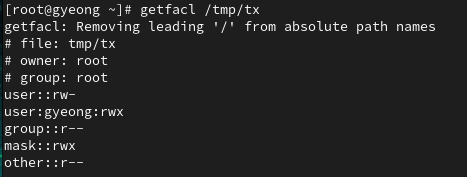
getfacl : 소유자, 권한 등을 보기 편하게 보여줌
setfacl u:gyeong:rwx /tmp/tx로 gyeong이라는 유저에 대해 권한 부여
64. Help Commands
whatis <command> : 명령어에 대한 짧은 설명
<command> --help : whatis 보단 자세히
man <command> : 전체 설명 보여줌
whatis 사용 시 ‘nothing appropriate’ 오류 뜨는 이유
: 해당 명령어는 man 페이지 데이터베이스에 의존하는데 데이터베이스가 없으면 발생
→ mandb 명령어를 통해 db 다시 생성
66. Adding Text to Files
redirection
> : overwrite
>> : append
9
echo "~~" > jerry : jerry 파일 내용을 해당 텍스트로 대체
echo "~~" >> jerry : jerry 파일 뒷부분에 해당 텍스트 추가
67. Input and Output Redirects
stdin : standard input , file descriptor number = 0
cat < listings: cat에 대한 입력으로 listings라는 파일 전달stdout: standard output, 1stderr: standard error , 2 - 커맨드가 어떤 에러를 발생시킬 경우. 다른 파일로 redirect시켜서 볼 수 있음.ls -l /root 2> errorfile: 명령어 실행 후 에러가 발생하면 errorfile로 입력telnet localhost 2> errorfile
68. Standard Output to a File
tee : T자형 배관처럼, 리다이렉션 시키면서 동시에 화면에도 결과 출력
echo "text" | tee <file>: file 내용을 text로 바꾸고 화면에도 출력함tee -a: append 할 수 있는 옵션
wc -c <file> : file의 모든 글자 수
69. Pipes (1)
ls -ltr | more: 출력 결과를 한 페이지에 하나씩 보여줌ls -l | tail -1: 마지막 한 줄만 출력
70. File Maintenance Commands
cp [옵션] [복사 할 디렉토리/파일] [목적지 디렉토리/파일]rmmv [option] [이동시킬 디렉토리/파일] [이동될 위치]: 파일 이름 변경도 가능mkdirrmdirorrm -rchgrpchown
71. File Display Commands
catmoreless: more처럼 한 번에 한 페이지씩 표시하지만 앞뒤로 탐색 가능head: 처음 10줄 보여줌 (숫자 지정 가능. -5면 앞 5줄은 안보여줌)tail: 마지막 10줄 보여줌
72. Filters / Text Processors Commands
cut: 파일 각 줄의 원하는 글자만 보기cut filename: 에러cut --versioncut -c1 filename: 파일의 각 줄마다 첫 번째 글자만cut -c1,2,4 filename: 1, 2, 4번째 글자 합쳐서 보여줌cut -d: -f 6 /etc/passwd: 콜론을 기준으로 여섯 번째 column 보여줌- d 뒤에 있는 게 구분자
cut -d: -f 6-7 /etc/passwd: 콜론을 기준으로 6, 7번째 column 보여줌ls -l | cut -c2-4: user 권한만 볼 수 있음
74. awk
awk [option] 'pattern {action}' : pattern 생략하는 경우 모든 레코드에 해당
awk '{print}' file: 파일 내용 출력 = catawk '{print $1}' file: 파일에서 첫 번째 행만 출력ls -l | awk '{print $1,$3}' filels -l | awk '{print $NF}': 마지막 행만 출력awk '/Jerry/ {print}' file: 파일에서 Jerry라는 단어가 들어간 라인 출력akw -F: '{print $1}' /etc/passwd: /etc/passwd에서 첫번째 행만 출력. F뒤가 구분자echo "Hello Tom" | awk '{S1="John"; print $0}': 두 번째 행인 Tom이 John으로 바뀌어 출력 → Hello Johnawk 'length($0) > 10' filename: 파일 내용 중 10바이트 이상인 줄 출력awk 'length($0) > 10 {print $3,#4,#5}' file: 레코드 길이가 10 이상인 경우 3, 4, 5 레코드 출력ls -l | awk '{if($NF=="seinfeld") print $0;}: ls -l 결과 중 마지막 레코드가 seinfeld 인 것 출력ls -l | awk '{print NF}': 몇 개의 레코드를 가지고 있는지 출력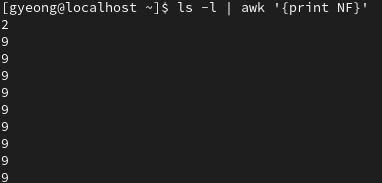
BEGIN, END 패턴
awk 'BEGIN {print "TITLE : Field value 1,2"} {print $1, $2} END {print "Finished"}' file.txt
BEGIN 뒤에 있는 문장을 시작 전 실행, 모든 레코드 처리 후 END에 지정된 액션 실행
76. grep/egrep - text processing Commands
grep이란?
정규 표현식. 한 줄 한 줄 해당하는 단어 검색
참고 -
whoami와hostname두 커맨드를 항상 쓰는 이유는 보통 기업 환경의 프롬프트에서는 사용자명과 기기명이 보이지 않기 때문 그래서 익숙해지는 게 좋다 !
grep --version : grep 버전 보기
grep --help: 사용법 보기
man grep: 좀 더 디테일한 사용법 보기
grep keyword filename: filename에 적힌 파일에서 keyword에 해당하는 글자가 있는 줄을 보여줌
 옵션
옵션 여러 개 동시에 사용 가능
옵션
옵션 여러 개 동시에 사용 가능
grep -c keyword file : 글자를 직접 보여주지 않고 개수만 출력
grep -i keyword file: ignore case-sensitive, 즉 대소문자 가리지 않고 해당되는 것 모두 출력
grep -n keyword file : 라인 넘버와 같이 출력

grep -v keyword file: keyword에 해당되는 줄 빼고 출력
다른 명령어와 함께 사용 예시
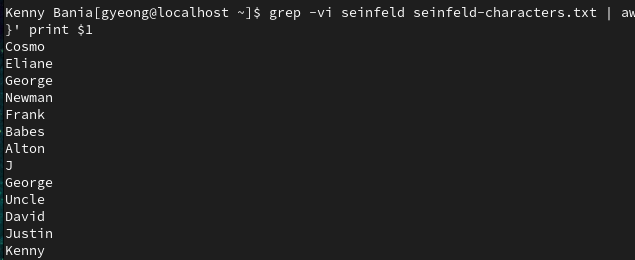
grep -vi keyword file | awk '{print $1}': awk 명령어와 같이 쓰기
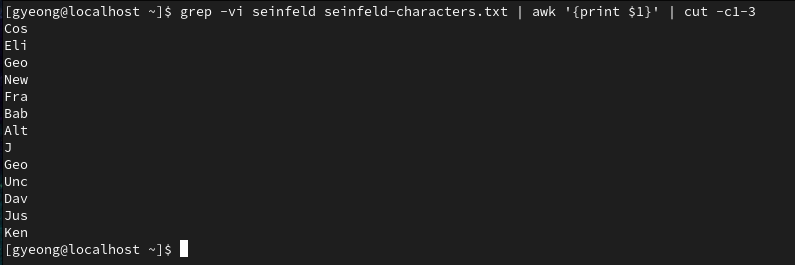
grep -vi keyword file | awk '{print $1}' | cut -c1-3: awk, cut과 같이 쓰기 → 첫 번째 행의 3글자만 출력
ls -l | grep Desktop: Desktop과 일치하는 파일이나 폴더 찾기
egrep
키워드를 두 개 찾고 싶을 때
egrep [옵션] "keyword|keyword2" file: 두 키워드 모두 검색 (or)

77. sort/uniq
sort 커맨드는 A부터 Z까지 알파벳 순으로 정렬
uniq 는 반복, 중복을 필터링해줌
sort file : 파일 내용 알파벳순으로 정렬
sort -r file: 알파벳 역순으로 정렬
sort -k2 file: 두번째 행 기준으로 알파벳 정렬
ls -l | sort : 파일 정렬 (주의! 첫 번째 행 기준으로 정렬)
ls -l | sort -k9 : 아홉번째 행, 즉 파일 이름 기준으로 정렬
uniq file: 중복 삭제 주의! sort를 먼저 해야 함
→ sort file | uniq 주의! 공백 있으면 서로 다르게 인식
sort file | uniq -c: 정렬 후 각 줄의 개수 세어줌
sort file | uniq -d: 중복된 줄만 보여줌
78. compare files
두 파일 비교하기
diff: line by line으로 비교cmp: byte by byte으로 비교
IP 확인하기
ifconfig
ip a
192.168.219.110
putty로 접속한 후 실습 (왜지?)
diff로 비교하기

cmp로 비교하기

79. wc - text processors Commands
wc file : file line, word, byte count

wc -l file: line count만
wc -w file: word count만
wc -c file: byte count만

ls -l | wc -l: 디렉토리 + 파일 개수 (하위 디렉토리 포함)

ls -l | grep drw | wc -l: drw가 들어간 것, 즉 모든 디렉토리의 개수 출력
grep keyword filename | wc -l : 해당 키워드가 있는 줄 개수 출력
(-c 옵션이랑 똑같음)

80. Compress and un-Compress files
tar
gzip
gzip -d OR gunzip
tar cvf gyeong.tar . : 현재 폴더에 있는 내용을 gyeong.tar로 압축하여 현재 폴더에 저장
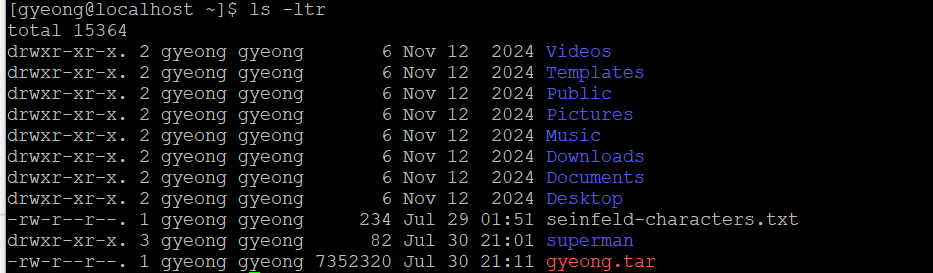
tar xvf gyeong.tar : 압축 풀기
gzip gyeong.tar : 용량도 작게 해서 압축 / 확장자 gz 추가
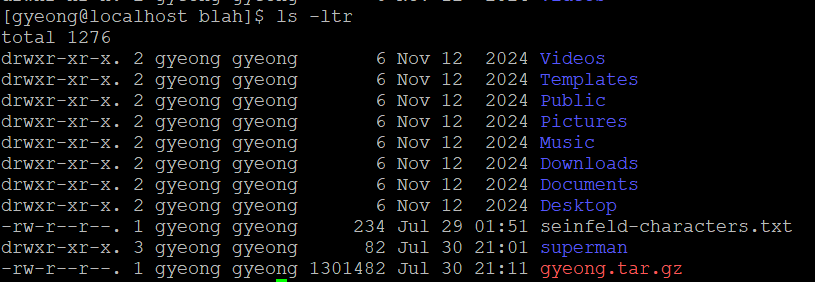
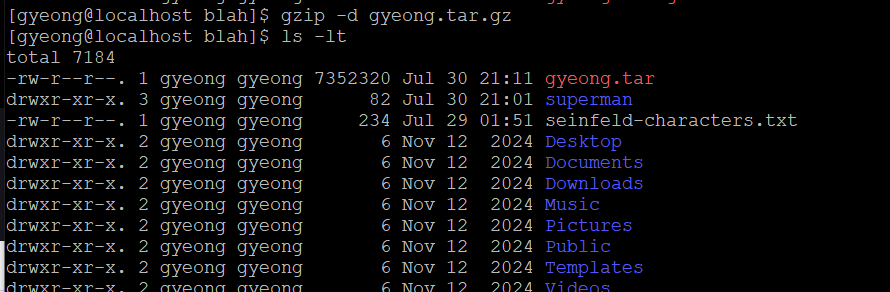
gzip -d gyeong.tar.gz
gunzip gyeong.tar.gz : 용량 다시 원래대로 풀기
rm -fr 폴더: 디렉토리 안에 내용 상관없이 무조건 삭제하기
81. 파일 자르기 (압축과 다름)
truncate -s 40 filename
자르면 뒷 내용 삭제됨

만약 더 큰 사이즈로 자른다면?
truncate -s 60 filename

뒤에 쓸모없는 null 캐릭터가 붙음
82. 파일 합치기 및 나누기
파일 합치기
cat file1 file2 file3 > file4
파일 나누기
split -l 2 filename output
- 라인(-l)을 기준으로 2줄씩 나누어 output 파일에 저장
- 결과물은 기본적으로 2글자의 접미사가 붙음 (aa, ab, ac…zz)
- 676까지 가면 끝
-a N옵션을 주면 접미사 길이 변경 가능 (-a 3→ aaa, aab, aac…)--numeric-suffixes옵션을 주면 숫자로도 가능(file00,file01…)
83. 리눅스 vs 윈도우 커맨드
| 설명 | 윈도우 | 리눅스 | |
|---|---|---|---|
| 디렉터리 목록 출력 | dir | ls -l | |
| 파일명 다시 설정 | ren | mv | |
| 파일 복사 | copy | cp | |
| 파일 이동 | move | mv | |
| 화면 청소 | cls | clear | |
| 파일 삭제 | del | rm | |
| 파일 내용 비교 | fc | diff | |
| search for a word/string in a file | find | grep | |
| display dommand help | command /? | man command | |
| 현재 위치 출력 | chdir | pwd | |
| 시간 출력 | time | date |
Homework
-
Practice Linux command syntax with command, options and arguments
-
List files in your home directory by the last time they were modified
-
Move jerry, george, kramer and puddy files into seinfeld directory
-
Move homer, bart, marge, lisa files in simpsons directory
-
Move clark, luther and lois files in superman directory
-
List the content of seinfeld directory by the last time they were modified
-
Create 2 new files in seinfeld directory, eliane and newman
-
change file permission of eliane to remove read access from everyone
-
change file permission of newman to add write permissions to only group
-
Become root and cd into your home directory (e.g. /home/iafzal). Then create 2 new files superman and zad in superman directory
-
Change ownership of zad file from root to your username
-
Change group ownership of zad from root to your username
-
Then move superman file to /tmp directory
-
Remove superman file from /tmp directory
-
Exit out of root account
-
Go back to superman directory in your home directory and add this line to zad file “zad is a bad character in superman movie”
-
Then go seinfeld directory and create a new file seinfeld.
-
Add 5 seinfeld characters name in seinfeld file. Jerry Seinfeld, George Costanza, Eliane Benis, Cosmo Kramer, and David Puddy
-
Become root user again
-
Do cat /var/log/messages and output to a file called mesg-new in your home directory (e.g. /home/iafzal)
-
Read the mesg-new file with cat, more and less commands and practice
-
View the first 10 lines of mesg-new file and output to a file name mesg-h10
-
View the last 20 lines of mesg-new file and output to a file name mesg-t20
-
Exit out of root user
-
Go to seinfeld directory in your home directory and create a new file”seinfeld-characters”
-
Add text to seinfeld-character file using echo command. Each character should be in one line, “Jerry Seinfeld, Cosmo Kramer, Eliane Benes, George Costanza, Newman Mailman, Frank Costanza, Estelle Costanza, Morty Seinfeld, Helen Seinfeld, Babes Kramer, Alton Benes, J Peterman, George Steinbrenner, Uncle Leo, David Puddy, Justin Pit and Kenny Bania”
-
Use cut command to cut the first 4 letters of each line from seinfeld-characters file and output to a different file name (name = filters-files)
-
Use awk command to get only the 2nd column of seinfeld-characters and output to the filters-files without removing any other text from it
-
Use grep command to only grep seinfeld and output to a new file call it seinfeld-family
-
Use sort command, uniq and wc command to practice whichever way you like by creating new files or working with existing files
References
2. 리눅스 사용법 > 권한에 대한 자세한 내용