Index: 유데미 리눅스
133~135. 커널, 쉘
커널(Kernel)이란? : 하드웨어와 소프트웨어 사이의 인터페이스.
쉘(Shell)이란? : 컨테이너 같은 것. 커널/OS와 사용자 사이의 인터페이스
echo $0: 자신의 shell 찾기
cat /etc/shells: 사용가능한 모든 쉘 리스트
/etc/passwd: 유저별 쉘 확인
윈도우 GUI, 리눅스 GUI, 리눅스 sh, bash 등은 모두 shell이다.
Types of Linux Shells
Gnome, KDE: GUI envrionment in Linux sh: CLI shell bash: Bourne Again Shell csh and tcsh: C syntax을 사용하는 shell ksh: KornShell shell, bashshell이랑 호환됨
136. Shell Scripting
쉘 스크립트란? : 여러 개의 쉘 명령어를 가진, 실행할 수 있는 파일
-
Shell(
#!/bin/bash) -
Comments(
# comments) -
Commands(
echo, cp, grep etc) -
Statements(if, while, for tc)
-
쉘 스크립트는 실행 권한이 있어야 함
-
또한 절대 경로로 호출되어야 함. (현재 경로에 있다면
./으로 호출 가능)
실습
vi output-screen으로 파일 만들고 vi 편집기 열기- 아래와 같이 입력
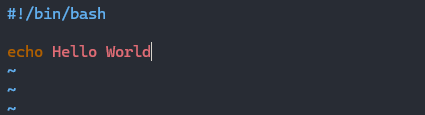
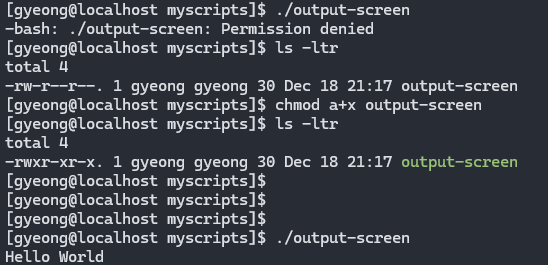
- 그냥 실행하면 권한이 없어서 안 된다고 하므로 실행 권한 주기 :
chmod a+x output-screen - 실행하기:
./output-screen
136. Input과 Output
read 변수이름: 유저 입력을 읽어 변수에 저장
$변수이름: 변수 출력
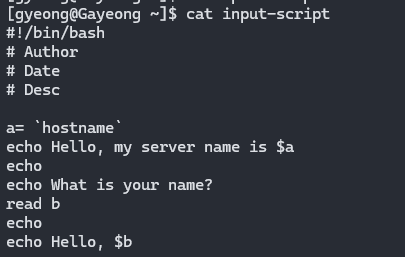
변수 대입 시 공백이 있으면 안됨!
139. if-then
- 조건은 대괄호 안에
- 맨 마지막에 fi로 닫아줘야 함
#!/bin/bash

count=100
if [ $count -eq 100 ] # count == 100인지 검사
then
  echo Count is 100
else
  echo Count is not 100
fi
#!/bin/bash
clear
if [ -e /home/gyeong/error.txt ] # 파일이 존재하는지 검사
then
echo "File exist"
else
echo "File not exist"
fi#!/bin/bash
a=`dat | awk '{print $1}'`
if [ "$a" == Mon ]
then
echo Today is $a
else
echo Today is not Monday
fi#!/bin/bash
clear
echo
echo "What is your name?"
echo
read a
echo
echo Hello $a sir
echo
echo "Do you like working in IT? (y/n)"
read Like
echo
if [ "$Like" == y ] # 문자열로 바꾸기
then
echo You are cool
elif [ "$Like" == n ]
then
echo You should try IT, it\'s a good field # 따옴표는 백슬래시랑 같이 쓰기
echo
fior 문
if [ "$a" == Monday ] || [ "$a" == Tuesday ]
if [ "$a" == Monday || Tuesday ] # 이건 안됨
파일이 있고 사이즈가 0보다 큰지 검사
if test -s error.txtinput이 0 이상인지
if [ $? -eq 0 ]비교연산자
-eq: equal to for numbers
-ne: not equal to
-lt: less than
-le: less than or equal to
-gt: greater than
-ge: greater than or equal to
파일 조작
-s: file exists and is not empty
-f: file exists and is not a directory
-d: directory exists
-x: file is executable
-w: file is writable
-r: file is readable
140. For Loop
#!/bin/bash

for i in 1 2 3 4 5
do
echo "Welcome $i times"
done
#!/bin/bash
for i in eat run jump play
do
echo See Imran $i
done#!/bin/bash
for i in {1..5}
do
touch $i
done#!/bin/bash
for i in {1..5}
do
rm $i
done#!/bin/bash
i=1
for day in Mon Tue Wed Thu Fri
do
echo "Weekday $((i++)) : $day" # 산술 연산은 괄호 두 개
done#!/bin/bash
i=1
for username in `awk -F: '{print $1}` /etc/passwd'`
do
echo "Username $((i++)) : $username"
done145. Aliases
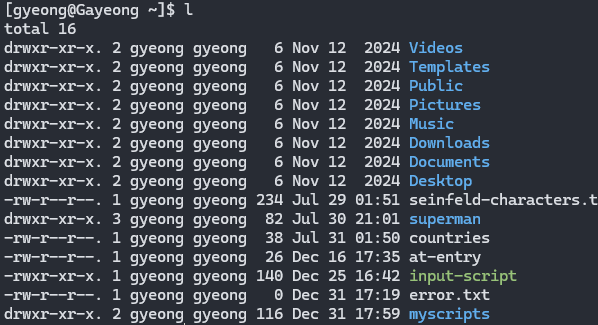
alias l="ls -ltr"ls -ltr에 l이라는 alias 붙인 것. l을 입력하면 아래와 같이 나옴
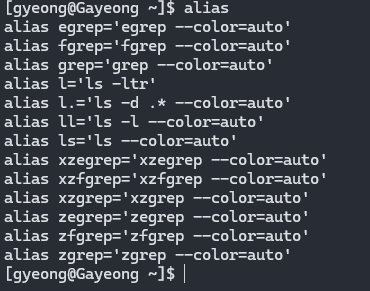
alias : 입력 시 현재 있는 alias 모두 볼 수 있음.
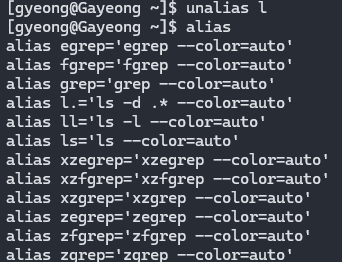
unalias [alias]: 만든 alias 삭제
146. User and Global Aliases
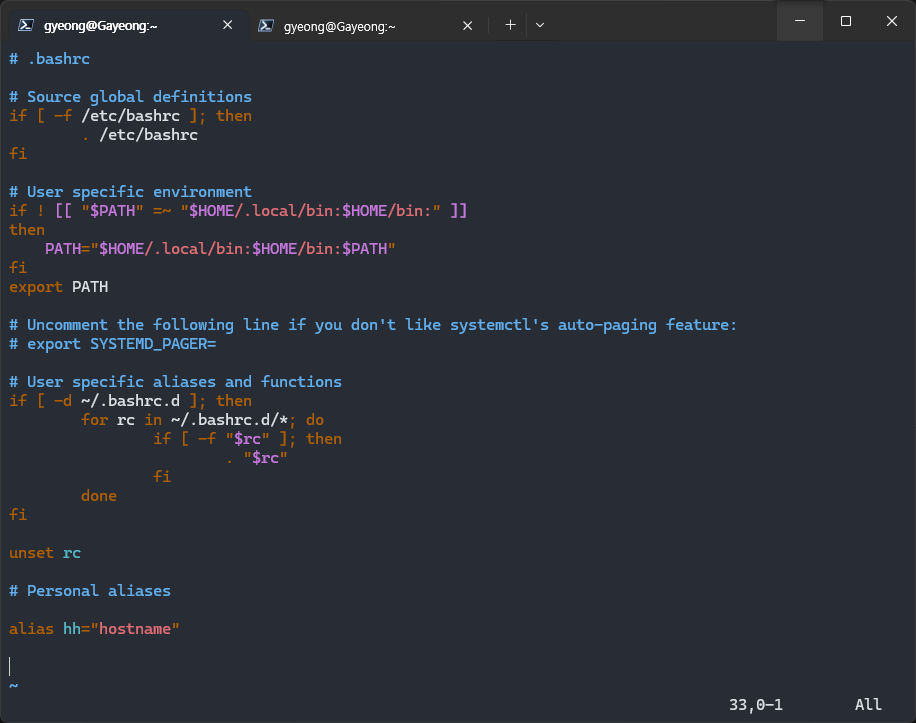
alias는 기본적으로 세션에 종속되어, 같은 유저라도 다른 세션으로 열면 사용 불가 아래의 파일을 수정해서 유저별, 글로벌 alias 만들 수 있음
- user:
/user/home/.bashrc(숨김파일ls -a) - global:
/etc/bashrc(루트 계정으로 해야됨) (참고: 파일 변경 후 해당 세션에서 바로 안 됨) →source ~/.bashrc
147. Shell History
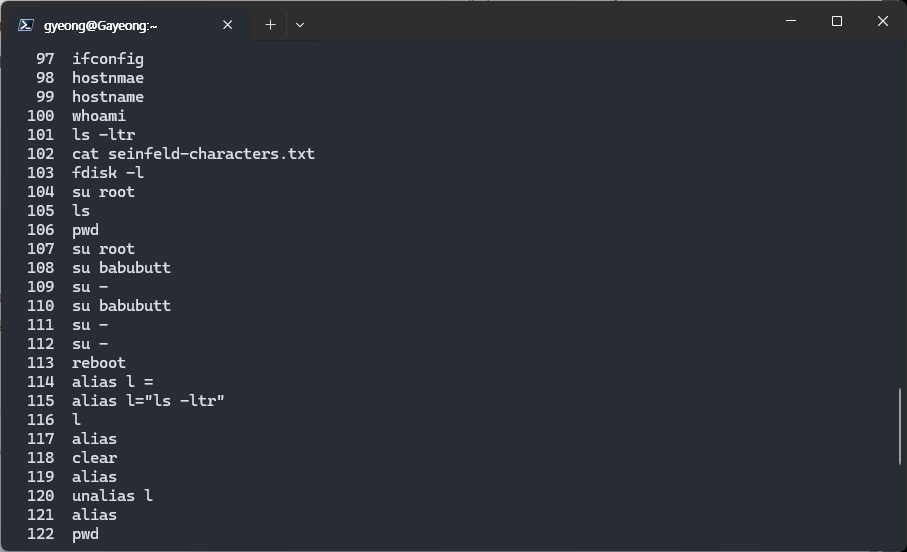
history 시스템에서 유저가 사용한 모든 커맨드 기록을 볼 수 있음.
(근데 왜 중간에 없는 것도 있지?)
![number]: history에 있는 해당 번호의 커맨드를 다시 실행
history 커맨드의 내용은 /home/yourname/.bash_history에 저장되어 있음.